Install IIS on Windows Server 2025 without installing everything
Add the IIS role with the minimum role services, verify W3SVC, open the right firewall port and avoid the default-site habits that cause later trouble.
- Build
- 26100.33650
- Edition
- Standard / Datacenter
- Architecture
- x64
- Support
- Documentation (E1)
- Evidence
- E1Official documentation
- Verified
- 2026-10-29
- Test machine
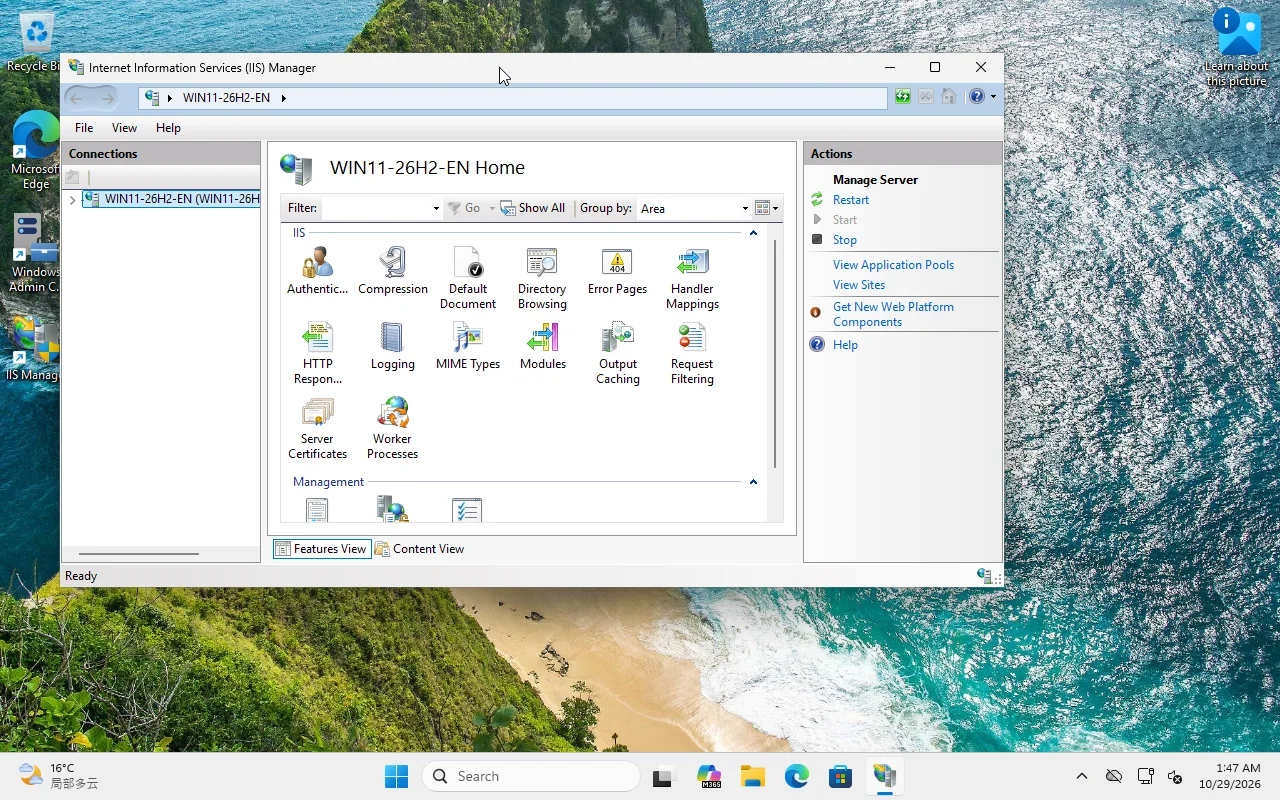
- IIS Manager UI reference: VM 361 Windows 11 26H2 (IIS 10); Server 2025 role selection is E1
- Page type
- Setup
The short answer
Section titled “The short answer”On Windows Server 2025:
- Server Manager → Add Roles and Features → Web Server (IIS).
- Install only the role services you need today.
- Verify
W3SVC, the default binding andhttp://localhost. - Remove or replace the default page before exposing the site.
- Open the firewall port only for the network that needs it.
The mistake is installing “everything” because the wizard offers it. Every extra module is more patch surface and more configuration you did not review.
Desktop Experience or Core?
Section titled “Desktop Experience or Core?”| Choice | IIS Manager (GUI) | Management |
|---|---|---|
| Desktop Experience | Yes | Local IIS Manager or remote |
| Server Core | No local console | Remote IIS Manager, appcmd, PowerShell, WAC |
On Core, the role still serves sites; you manage it remotely. Do not install the GUI shell just to click “Sites”.
Minimum role services
Section titled “Minimum role services”For a static site with logging and request filtering:
- Web Server
- Common HTTP Features → Static Content, Default Document, HTTP Errors
- Health and Diagnostics → HTTP Logging
- Security → Request Filtering
- Management Tools → IIS Management Console (Desktop only)
Add FastCGI for PHP, ASP.NET Core Hosting Bundle/ANCM for .NET, URL Rewrite/ARR only when the app needs them. Do not add FTP, WebDAV or IIS 6 compatibility by default.
Install with PowerShell
Section titled “Install with PowerShell”On Server 2025 (elevated):
Install-WindowsFeature Web-Server -IncludeManagementToolsGet-WindowsFeature Web-Server,Web-Mgmt-Console,Web-Filtering,Web-Http-LoggingGet-Service W3SVCFor a smaller Core install, list role services explicitly:
Install-WindowsFeature Web-Server,Web-Static-Content,Web-Default-Doc,Web-Http-Errors,Web-Http-Logging,Web-FilteringOn a Windows client the cmdlet is Enable-WindowsOptionalFeature; do not copy that command to Server 2025. The lab UI was captured on Windows 11, but the Server cmdlet is the one above.
Verify before adding an app
Section titled “Verify before adding an app”Get-Service W3SVCInvoke-WebRequest http://localhost/ -UseBasicParsing | Select-Object StatusCodenetsh http show servicestate | Select-String ":80"If localhost fails:
- Is
W3SVCrunning? - Is the Default Web Site started?
- Is another process on port 80?
- Is the firewall blocking only the remote client (not localhost)?
First hardening
Section titled “First hardening”- Remove
iisstart.htmor replace it with an intentional page. - Create a dedicated app pool for the site; do not leave it on
DefaultAppPool. - Disable directory browsing unless you need it.
- Remove unused modules and handlers.
- Set a logging directory with retention.
- Bind only the hostnames/IPs you need.
Lab note
Section titled “Lab note”The screenshots come from VM 361, Windows 11 26H2, IIS 10. The role-service names and Install-WindowsFeature path are Server 2025 documentation (E1). A Server 2025 VM will be added for E2; until then the UI is a reference, not a Server 2025 reproduction claim.