Windows 11 26H2 · build 26300.9457
Stop following out-of-date tutorials.
Plenty of Windows guides online were written for builds long gone. Every page here shows the date it was checked and the build it applies to.
215 pages18 reproduced in the labupdated 2026-10-29
Recently verified
Pages checked again most recently. E2 was reproduced in the lab; E1 follows the official documentation.
Start with the task
What are you trying to do?
Pick the job, not the chapter. Each path starts with the decision and ends with a way to verify it.
Install Windows cleanly
Official 26H2 media, UEFI, TPM 2.0 and the installer’s own partition layout.
→ChecklistSet up a new PC
Updates, drivers, browser, privacy and backup — the first ten minutes that matter.
→SetupDevelop on Windows
WSL2 and Ubuntu on a D: Dev Drive, with the ReFS limits stated up front.
→MethodMeasure a game
Frame time and 1% low before any tweak; a ledger for every change.
→TroubleshootFix a DLL error
Identify the missing runtime, check bitness, repair the store — never download a random DLL.
→AdminRun Windows Server
Editions, licensing, PVE installs and the minimum roles for a rebuildable homelab.
→If you are new
Four steps to a PC you can trust
Do not start with a tweak. Start with the build, the install and the first boot.
- 01
Choose the build
26H2, 25H2, LTSC or Arm: pick for support and hardware, not a benchmark screenshot.
Compare versions → - 02
Install it clean
Official media, UEFI, TPM 2.0 and a partition layout you can explain.
Clean install guide → - 03
Finish the first hour
Drivers, updates, RDP, encryption and a backup before installing a toolchain.
First 10 minutes → - 04
Inside the lab
Screenshots, not stock photos.
Every E2 page starts from a reproduced VM. These are the actual captures behind the guides.
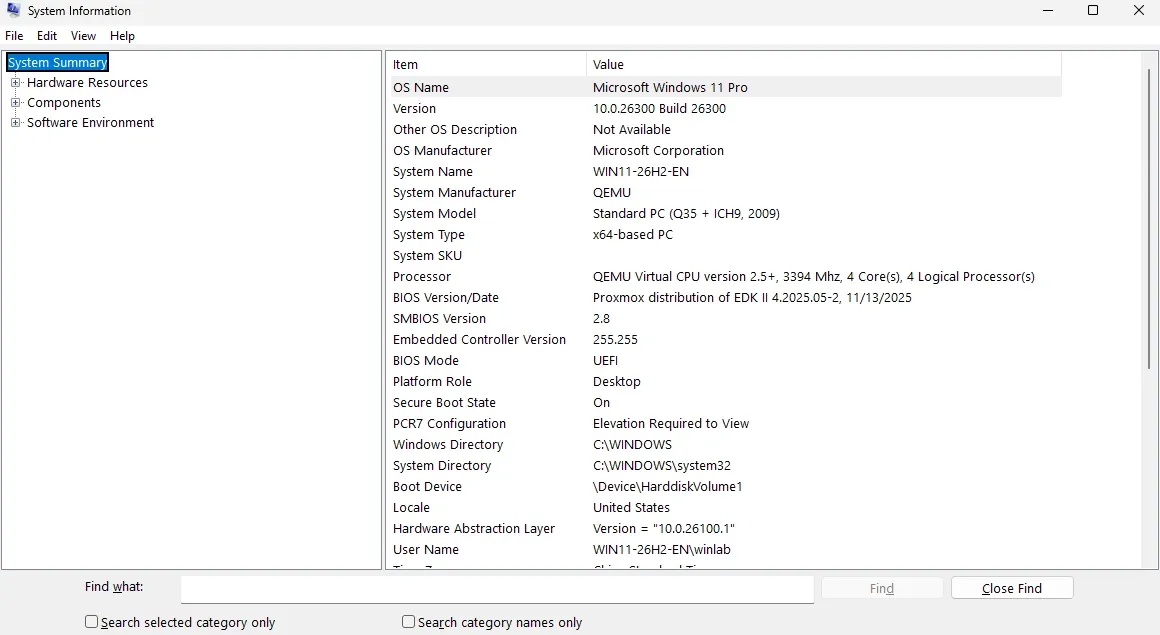
Windows 11 Pro 26H2, build 26300.9457
UEFI, Secure Boot On and TPM 2.0 ready — verified in the guest, not assumed from the VM config.
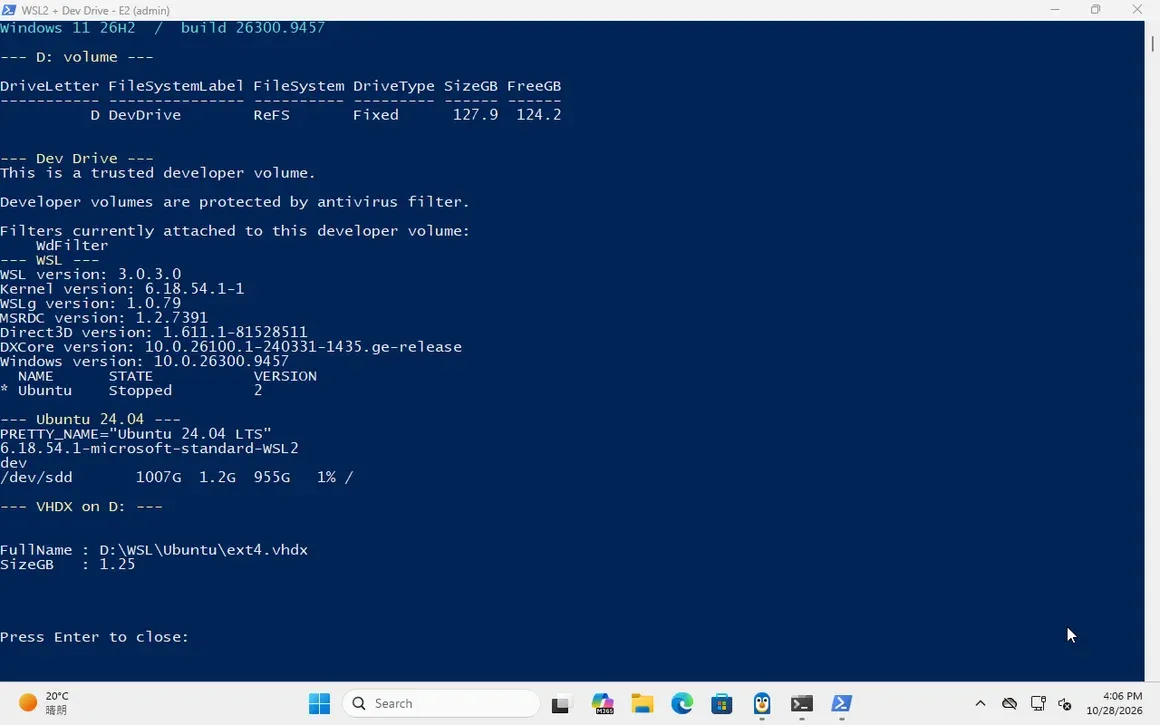
WSL2 + Ubuntu on a D: Dev Drive
WSL 3.0.3, Ubuntu 24.04 and the ext4 VHDX on D: — with the ReFS performance caveat stated, not hidden.
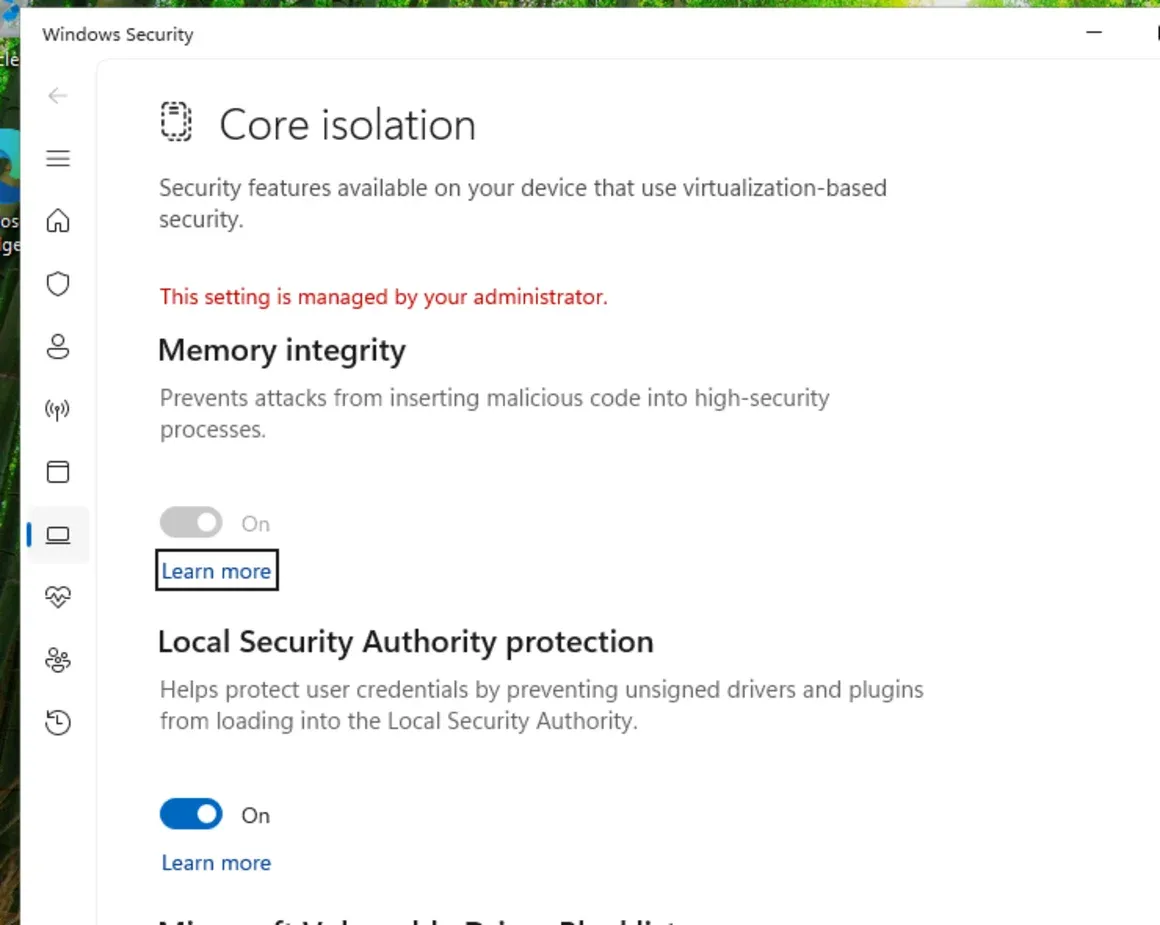
Memory integrity: on, off, measured
Three runs per state. The CPU/memory delta was inside the noise; the page says exactly that.
Browse the library
Eight ways in
No endless sidebar. Choose a category, then a page that matches the job.
Build-specific
Every page names the Windows build and edition it applies to. 26H2 means 26300, not “Windows 11”.
Evidence first
E1 is documentation, E2 is a reproduced lab, E3 is physical hardware. We do not blur the three.
Rollback included
A snapshot, a restore point or a reverse command. If a page cannot offer a way back, it says so.
WinBook is independent documentation. Not affiliated with Microsoft. No ISO mirrors, activation tools or DLL downloads.