Windows Admin Center: install, secure and actually use the gateway
A lab-tested Windows Admin Center 2606 walkthrough: install on Windows 11, certificate and port choices, add a server, tools, least privilege and a troubleshooting matrix.
- Build
- 26300.9457
- Edition
- Standard / Datacenter
- Architecture
- x64
- Support
- Lab (WAC 2606 gateway)
- Evidence
- E2Reproduced in the lab
- Verified
- 2026-10-29
- Test machine
- PVE VM 361; Windows 11 Pro 26H2 26300.9457 gateway; WAC 2606; HTTPS 6516; self-signed cert; local admin winlab
- Page type
- Server role
The short answer
Section titled “The short answer”Windows Admin Center is a browser-based management gateway. You install it on a Windows Server or Windows client, open https://gateway:port, sign in, and add the machines you want to manage.
It is not a monitoring stack, not a backup, and not a reason to expose RDP or WAC to the internet. The useful mental model:
- Gateway — the WAC service, certificate, port, identity.
- Managed node — a server/PC reached over WinRM/SMB.
- Tools — extensions loaded per node (files, PowerShell, registry, updates…).
This page is E2 for the gateway install and UI (WAC 2606 on Windows 11 26H2) and E1 for Server 2025-specific management, because the lab had no second Server node or domain.
What the lab actually did
Section titled “What the lab actually did”| Item | Lab value |
|---|---|
| Gateway OS | Windows 11 Pro 26H2, 26300.9457 |
| WAC | 2606 |
| Port | HTTPS 6516 |
| Certificate | Self-signed, generated at install |
| Sign-in | Local admin winlab |
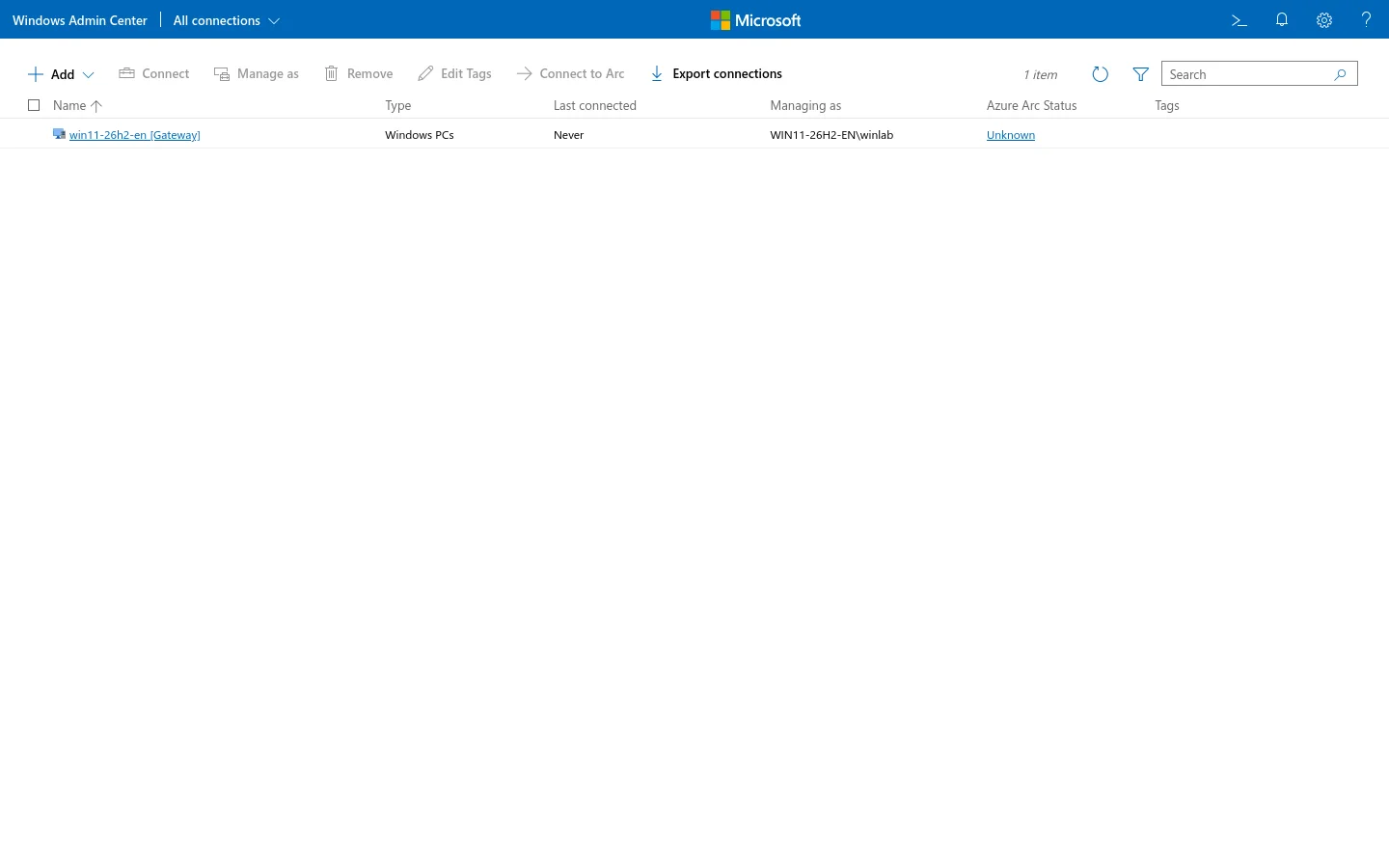
| Managed node | The gateway itself (win11-26h2-en) |
| Browser | Firefox through an SSH tunnel; Chromium failed with ERR_NETWORK_CHANGED on the same tunnel |
The installer downloaded from aka.ms/WACDownload was a PE executable, not an MSI, in this run. That matters:
C:\WAC.msi /VERYSILENT /SUPPRESSMSGBOXES /NORESTART /HTTPSPortNumber=6516 /SSL_CERTIFICATE_OPTION=generateA real MSI would use msiexec /i ... SME_PORT=... SSL_CERTIFICATE_OPTION=generate. Check the file header before choosing the command; MZ means EXE, D0 CF 11 E0 means MSI.
Install choices
Section titled “Install choices”| Choice | Lab | Production guidance |
|---|---|---|
| Gateway OS | Windows 11 client | Windows Server for a shared admin gateway; client is fine for a single admin |
| Port | 6516 | Any free HTTPS port; document it |
| Certificate | Self-signed | Internal CA/trusted cert with the DNS name |
| Identity | Local admin | Entra ID/AD with least privilege; MFA at the access layer |
| Network | Management LAN/VPN | Never port-forward WAC to the internet |
| HA | None | WAC supports HA configurations; treat as a separate design |
Minimum checks before install:
winverGet-Service WindowsAdminCenter -ErrorAction SilentlyContinueGet-NetTCPConnection -State Listen | Where-Object LocalPort -eq 6516After install, verify the service and listener; a browser error before the service is running is not a WAC bug.
Sign in and add a server
Section titled “Sign in and add a server”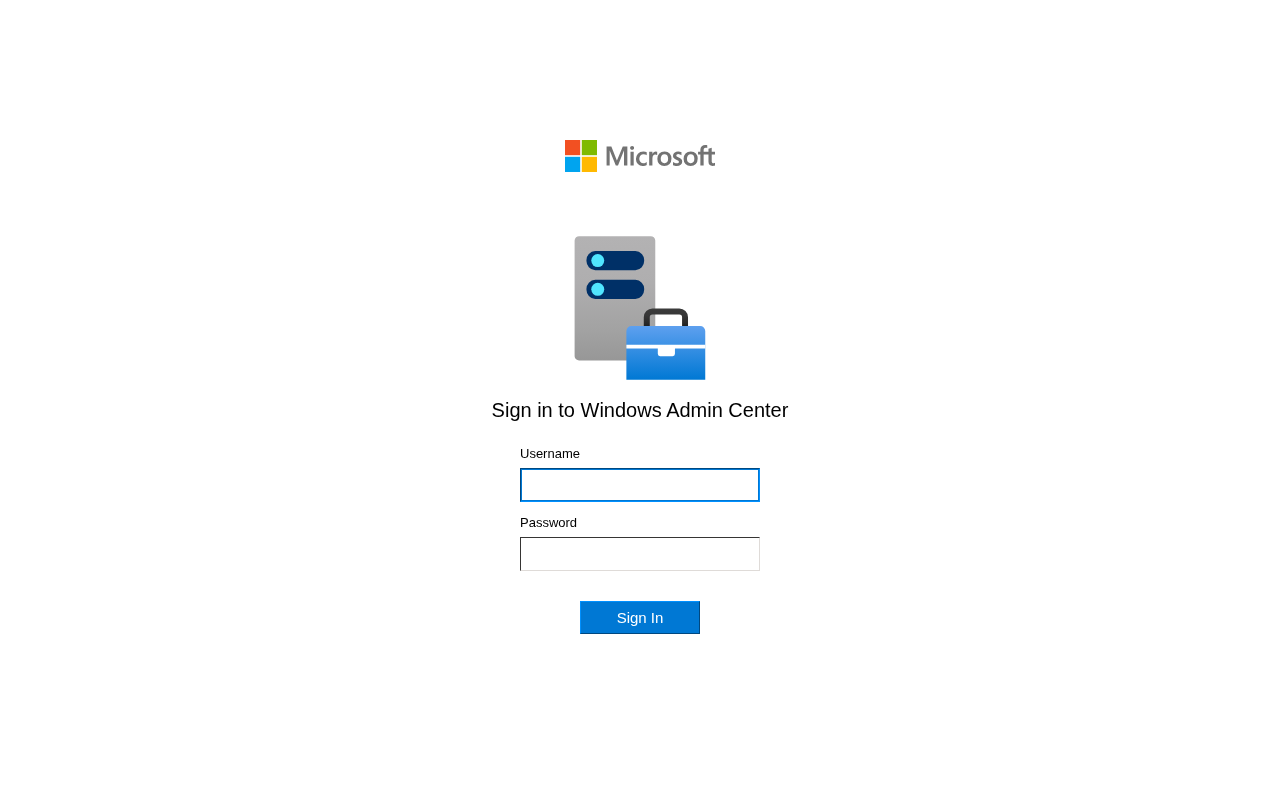
- Open
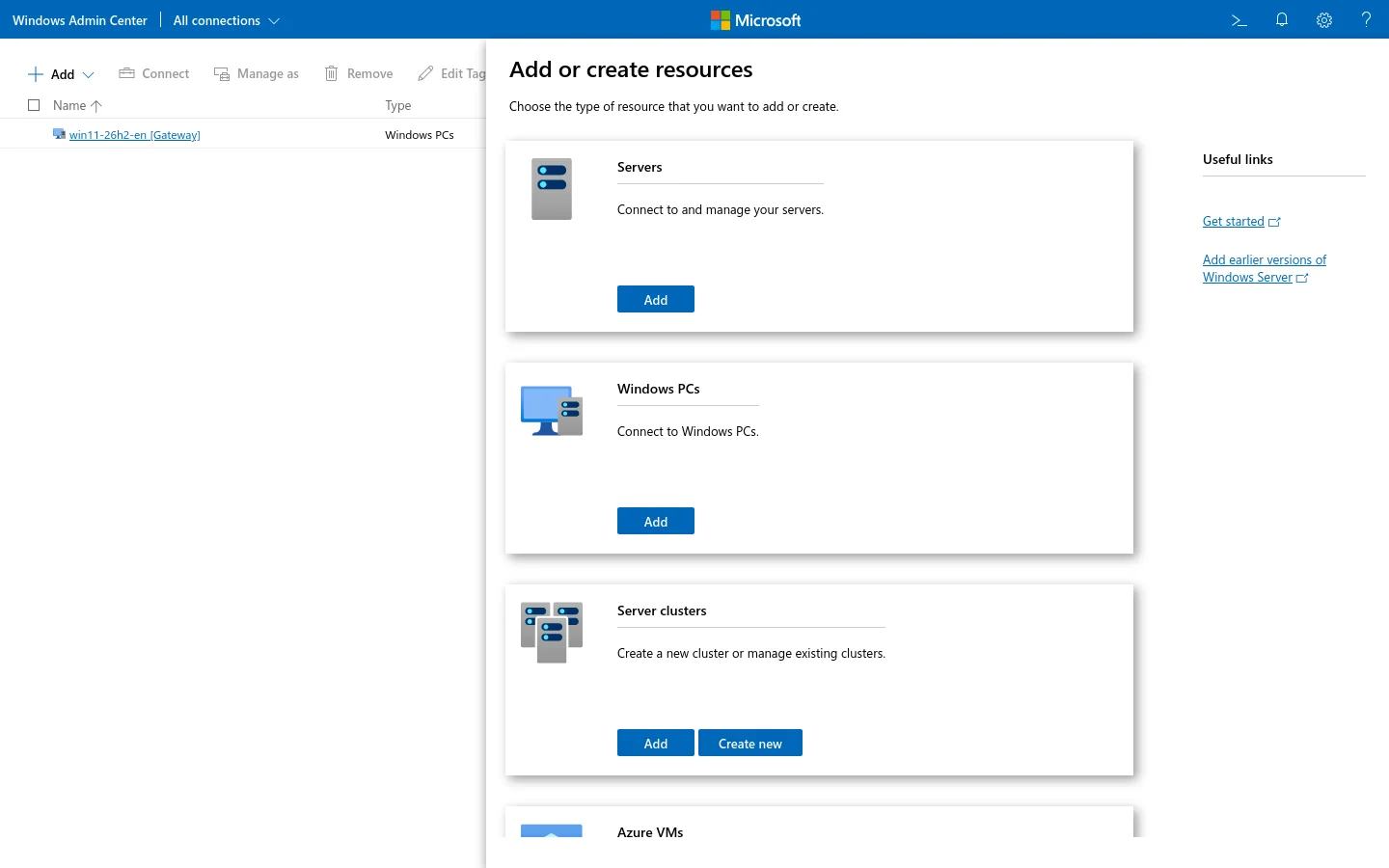
https://<gateway>:6516/and sign in. - Add → server/PC → enter the computer name.
- Use an account that is local admin (or delegated) on the managed node, not necessarily a domain admin.
- Provide credentials; choose “manage as” if you need a different account.
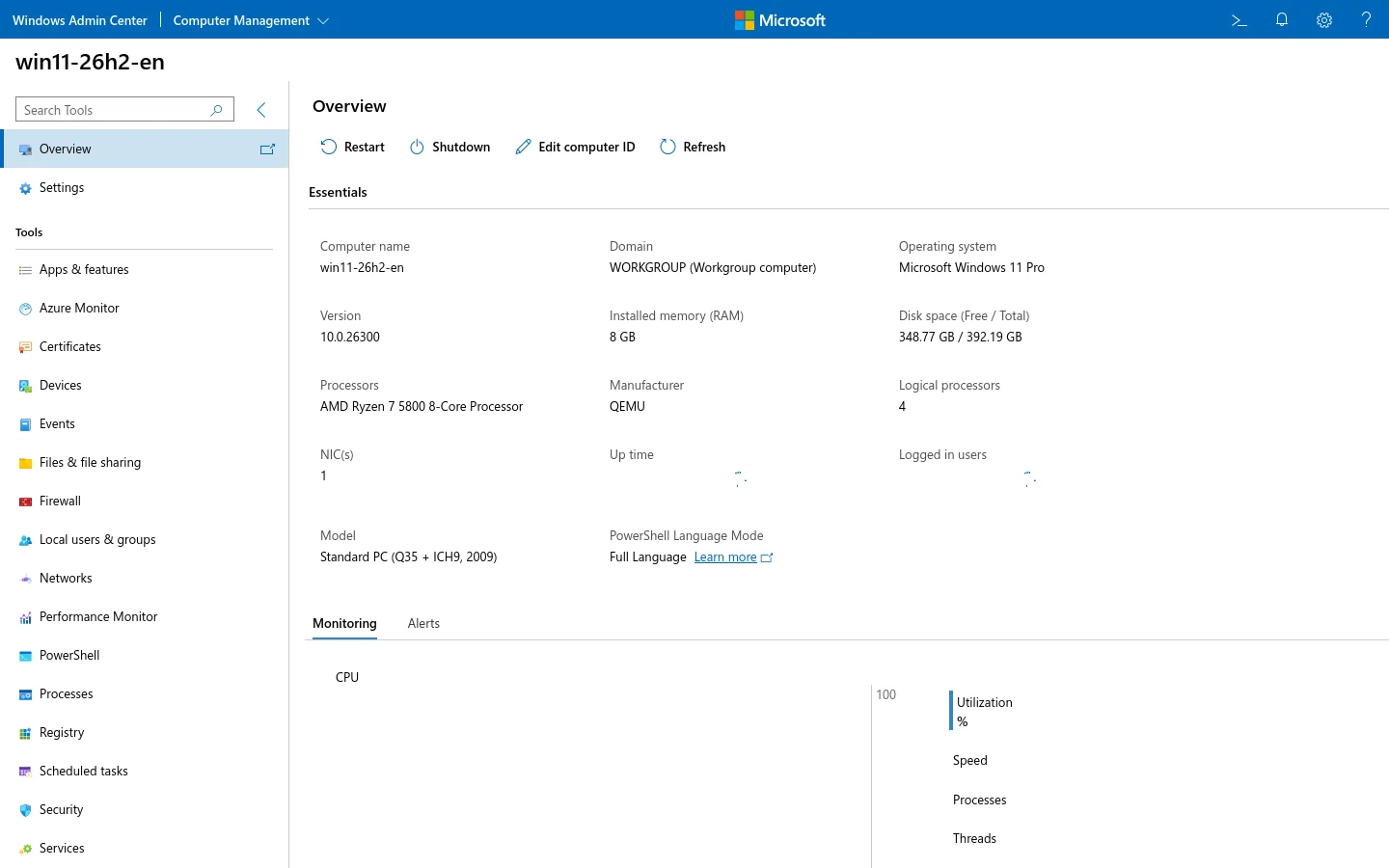
- Open the node → Overview → check name, OS, version, RAM, tools.
Requirements on the managed node:
- WinRM (5985/5986) reachable from the gateway;
- SMB 445 for file operations;
- DNS resolves the name;
- time is within Kerberos tolerance for domain auth;
- firewall rules for the management network, not the whole internet.
The tools worth knowing
Section titled “The tools worth knowing”| Tool | Use it for | Prefer PowerShell when |
|---|---|---|
| Overview | Name, OS, uptime, CPU/RAM | You need history/metrics |
| Files & file sharing | Browse, upload/download, shares | Bulk ACL/recurse operations |
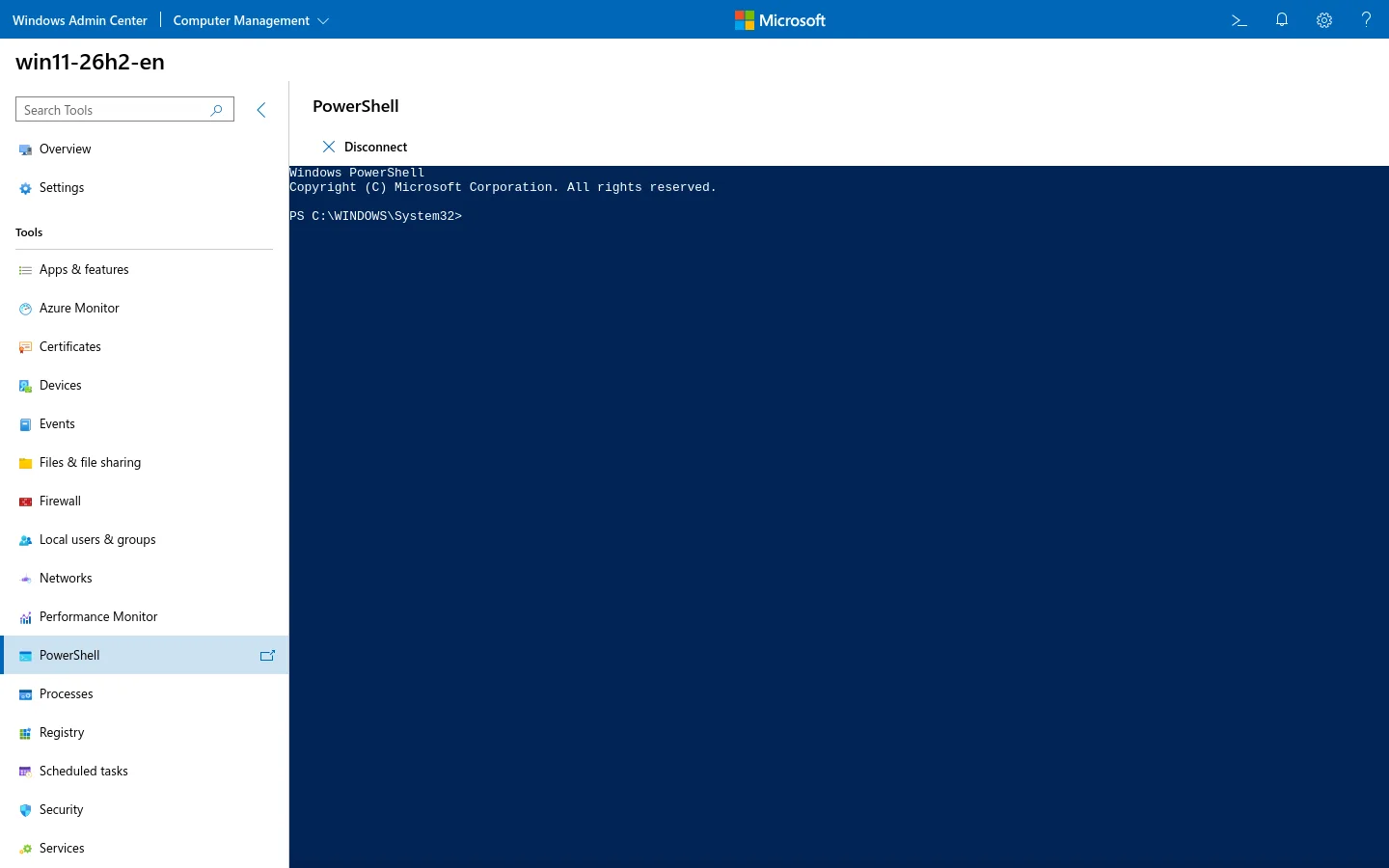
| PowerShell | Ad-hoc commands, quick checks | Long scripts/automation |
| Registry | Inspect a key | Bulk/exported changes |
| Services/Processes | Restart/stop, inspect | Repeatable service config |
| Updates | Inventory/install updates | Rings/WSUS/Intune policy |
| Storage | Volumes, disks, shares | Storage Spaces/detailed MPIO |
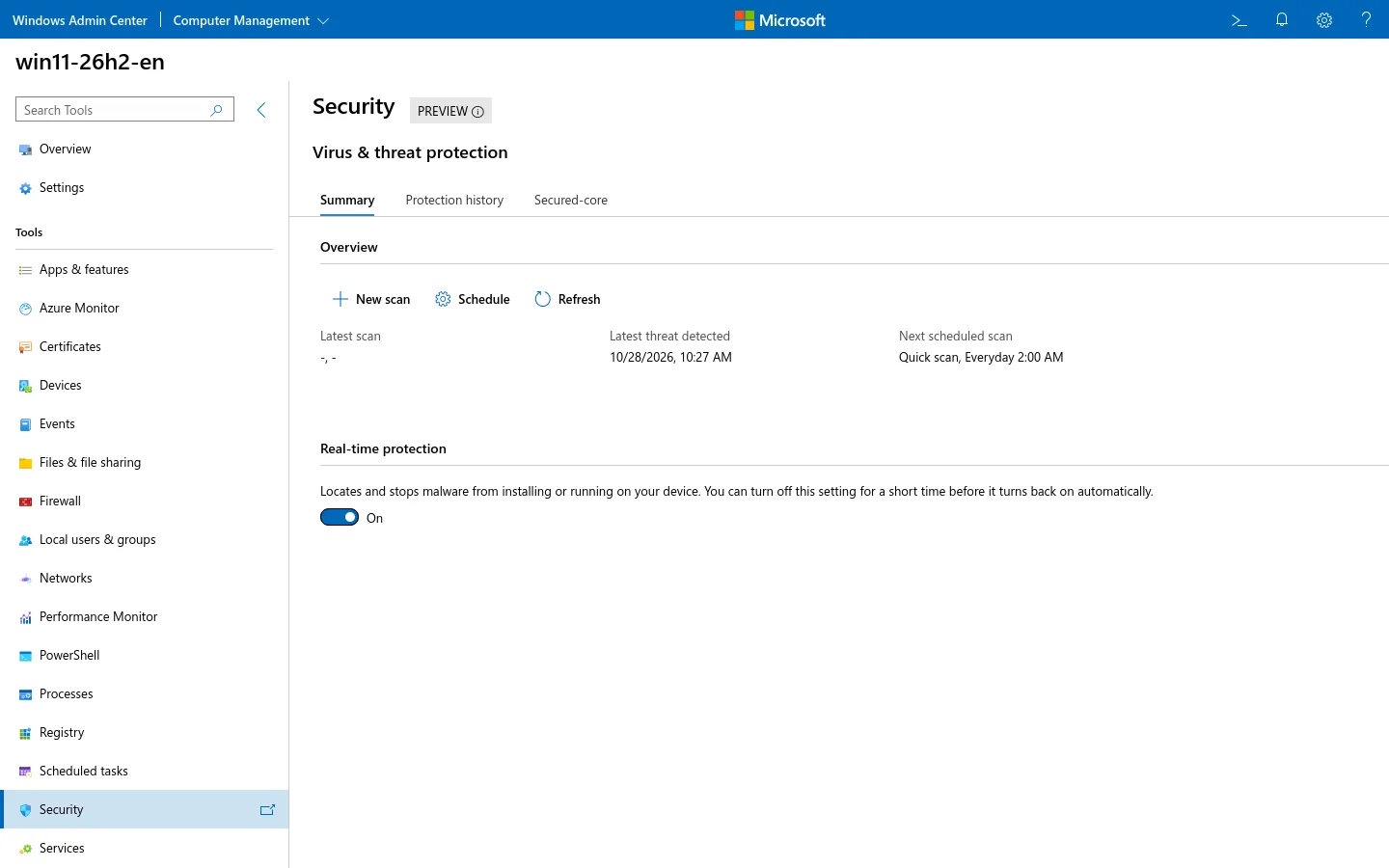
| Security | Defender/firewall status | Policy/EDR integration |
| Virtual machines | Basic VM lifecycle | Nested networking/advanced config |
The PowerShell tool is not a replacement for a terminal profile or a full IDE, but it is the fastest way to prove the WinRM channel works:
Security model
Section titled “Security model”WAC is a management plane. Treat it like a domain controller console, not a website:
- Put it on a management VLAN/VPN; block 6516 from the internet.
- Use a trusted certificate with the gateway DNS name; self-signed is lab-only.
- Use MFA at the VPN/identity layer; WAC’s local form login is not MFA by itself.
- Use least privilege and “manage as” for specific nodes.
- Keep the gateway patched; extensions are code.
- Avoid CredSSP unless a specific tool requires it; it delegates credentials and widens the blast radius.
- Log and review sign-ins; a gateway is a high-value target.
Daily operations
Section titled “Daily operations”- Patch the gateway monthly, like any management service.
- Update extensions deliberately; read the release notes.
- Keep a local break-glass path (RSAT/PowerShell/console) for when WAC is down.
- Document the certificate expiry and port.
- Back up WAC settings/connections if you rely on them; do not treat the gateway as the backup.
- Remove stale connections and old admin accounts.
Troubleshooting matrix
Section titled “Troubleshooting matrix”| Symptom | Likely cause | Check/fix |
|---|---|---|
| Login page loops/403 | Cookies, time, certificate, auth | Check clock, cert trust, browser cookies; try a private window |
| “Connecting to server” hangs | WinRM blocked | Test-WSMan <node> from gateway; firewall 5985/5986 |
| Files fail, tools work | SMB 445 blocked | Test 445 from gateway; firewall/file sharing |
| Files tool stuck on “Hang on…” | SMB/extension load | Test 445; restart the gateway service; check the Files extension |
| Certificate warning | Self-signed/name mismatch | Install a trusted cert with the DNS name |
| Domain sign-in fails | DNS/time/Kerberos | Resolve-DnsName, w32tm /query /status |
| Tool loads but actions fail | Credentials/rights | Use “manage as” with the right local admin |
| Extension error | Version mismatch/gateway update | Update WAC/extensions; check logs |
| Cannot reach 6516 | Firewall/network | Get-NetTCPConnection; management VLAN/VPN |
Useful commands from the gateway:
Test-WSMan win11-26h2-enTest-NetConnection win11-26h2-en -Port 445Get-Service WindowsAdminCenterGet-NetTCPConnection -State Listen | Where-Object LocalPort -eq 6516Lab limits
Section titled “Lab limits”- Gateway is Windows 11, not Server 2025.
- Only the gateway itself is managed; no second node, domain, Azure Arc, HA, CredSSP or enterprise CA.
- Self-signed certificate was accepted explicitly for the lab.
- The browser observation (Firefox worked, Chromium
ERR_NETWORK_CHANGEDthrough the same SSH tunnel) is not a general browser compatibility claim. - The Files tool stayed on “Hang on…” for more than 20 seconds in this lab; it was not used as a screenshot. This is a lab observation, not a claim that Files is broken generally.