Clean install Windows 11 26H2: UEFI, TPM 2.0 and partitions
Install Windows 11 26H2 from official media: check UEFI, TPM 2.0 and Secure Boot, create the USB, partition the disk, finish OOBE and verify build 26300.9457.
- Build
- 26300.9457
- Edition
- Pro (26H2)
- Architecture
- x64
- Support
- Lab (clean install)
- Evidence
- E2Reproduced in the lab
- Risk
- R2Needs a restore point
- Verified
- 2026-10-28
- Test machine
- PVE 9.2.2 VM 361; Windows 11 Pro 26H2 26300.9457; UEFI + Secure Boot + vTPM 2.0; 8GB/4 vCPU; SATA install path
- Page type
- Task
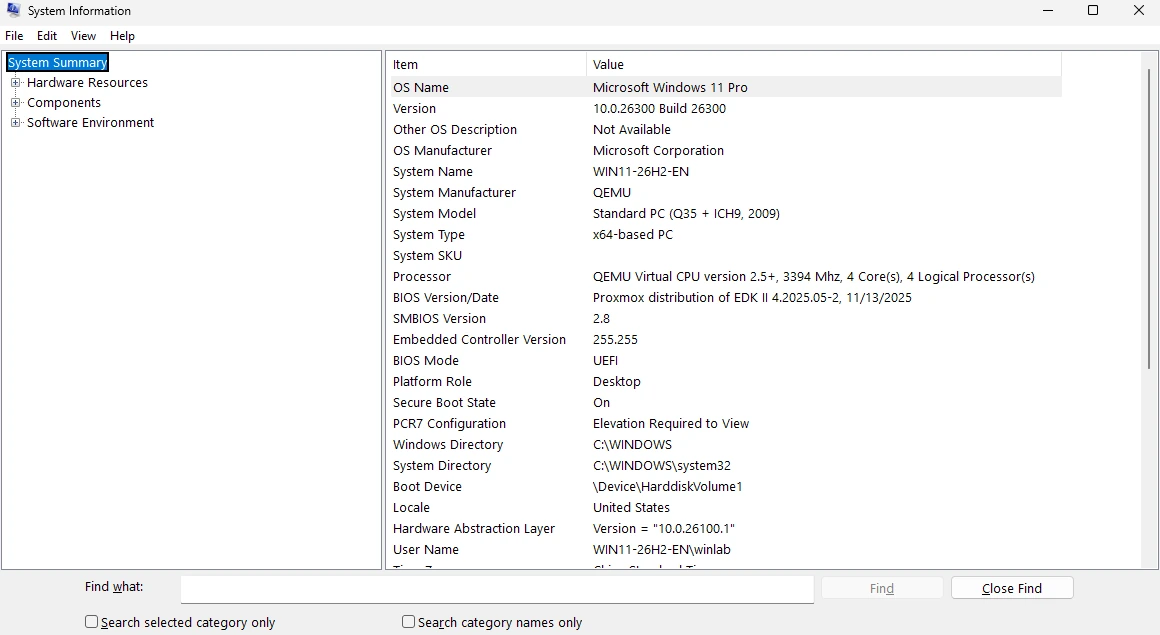
msinfo32 on VM 361: Windows 11 Pro, build 26300, UEFI, Secure Boot On. Click to open full size.The short answer
Section titled “The short answer”A clean install is four things in the right order: official 26H2 media, UEFI firmware with TPM 2.0 and Secure Boot, the installer’s own partition layout, and drivers after first boot. If the machine is supported, do not use a “TPM bypass” or a modified ISO. Fix the firmware instead.
Before you start
Section titled “Before you start”| Item | Minimum | Check |
|---|---|---|
| Firmware | UEFI, 64-bit | BIOS mode is UEFI, CSM/legacy off |
| Security | TPM 2.0, Secure Boot capable | tpm.msc, msinfo32 |
| CPU / RAM | 64-bit CPU, 4GB RAM | 26H2 supported CPU list |
| Disk | 64GB or larger | Free space after backup |
| USB | 8GB or larger | It will be erased |
| Network | Ethernet or known-good Wi-Fi driver | Have the driver on a second USB if Wi-Fi is missing |
| Licence | Windows 11 key or digital licence | Linked to your Microsoft account |
Windows 11 26H2 is a client release. This page does not cover Windows Server, ARM64, or an in-place upgrade from 25H2/24H2. Those are separate paths.
Step 1 — Get the official ISO and verify it
Section titled “Step 1 — Get the official ISO and verify it”Download from Microsoft’s Download Windows 11 page, not from an “optimized” or “LTSC” mirror. The 26H2 consumer ISO contains Home, Pro and Education images; Setup asks which one to install.
The lab image used here:
Windows11_Client_x64_en-us_26300_9457.isoSHA-256: BD4307DF32BC8AF33B39CCECB1174AEB345386630F89A2B86C7A4E36B55EA650Verify it before writing the USB:
Get-FileHash .\Windows11_Client_x64_en-us_26300_9457.iso -Algorithm SHA256Step 2 — Make the USB
Section titled “Step 2 — Make the USB”Use one of these, in order of preference:
- Media Creation Tool from the same Microsoft page. It downloads 26H2 and writes a UEFI-bootable USB.
- Rufus 4.x with the official ISO: partition scheme GPT, target UEFI (non-CSM), file system default.
- Ventoy: copy the ISO to the Ventoy partition; boot the ISO in UEFI mode.
If you format manually, do not use plain FAT32 for the whole USB when install.wim is larger than 4GB. Let the tool split the image or use Rufus’s NTFS/UEFI:NTFS layout.
Step 3 — Boot the USB in UEFI mode
Section titled “Step 3 — Boot the USB in UEFI mode”Enter the firmware menu, confirm UEFI, TPM 2.0 and Secure Boot are on, disable CSM/legacy boot, then choose the USB from the one-time boot menu.
| Vendor | Firmware setup | Boot menu |
|---|---|---|
| Dell | F2 | F12 |
| HP | F10 | F9 |
| Lenovo | F2 or Fn+F2 | F12 |
| ASUS | F2 or Del | Esc or F8 |
| MSI | Del | F11 |
| Gigabyte | Del | F12 |
If Secure Boot is off, turn it on and save. If TPM is hidden, enable the firmware TPM (Intel PTT / AMD fTPM) or plug in the discrete TPM. Do not continue with a bypass on a machine you intend to keep supported.
Expected: UEFI boot, Secure Boot On, TPM 2.0 present.
Step 4 — Start Setup
Section titled “Step 4 — Start Setup”- Choose language, time and keyboard, then Next → Install now.
- Enter a product key, or choose I don’t have a product key if you will activate later. Setup can install without a key; activation is separate.
- Select the edition that matches your licence. The ISO’s index matters: Pro is not Home, and a Pro key will not activate a Home install.
- Accept the licence terms.
- Choose Custom: Install Windows only (advanced). “Upgrade” is for an in-place upgrade, not this procedure.
Step 5 — Partition the disk
Section titled “Step 5 — Partition the disk”On a blank disk, select Unallocated space and click Next. Setup creates the UEFI layout itself:
| Partition | Size | Purpose |
|---|---|---|
| EFI System Partition | about 100MB | Boot files |
| Microsoft Reserved (MSR) | 16MB | Reserved |
| Windows (primary) | remaining space | Windows, apps, user data |
If the disk already has partitions, delete only the ones you are replacing. Delete on the wrong partition destroys data. For dual boot, shrink the existing Windows partition from the running system first, leave unallocated space, and install the second Windows there; do not delete the existing EFI partition.
Step 6 — Copy, reboot, and don’t boot the USB again
Section titled “Step 6 — Copy, reboot, and don’t boot the USB again”Setup copies files and reboots. At the “Press any key to boot from CD or DVD” prompt, do not press a key; let it time out so the disk boots. If the machine keeps returning to Setup, remove the USB or change the boot order to the internal disk.
The first boot can take several minutes. A black screen with a spinner is normal; a firmware “no bootable device” error is not. Check that the disk is GPT and that the EFI partition exists.
Step 7 — OOBE and the account
Section titled “Step 7 — OOBE and the account”Choose region, keyboard, and network. OOBE may ask for updates and a Microsoft account. For a personal PC, a Microsoft account is the supported consumer path and makes activation and device recovery easier.
For a lab or shared machine, use the local-account option that the edition offers. If the build does not offer one, use an answer file or the edition’s supported work/school join flow; do not run a third-party “bypass” script. This lab used an answer file, so it did not exercise the consumer account screens.
Step 8 — Drivers, updates, and verification
Section titled “Step 8 — Drivers, updates, and verification”Use the OEM’s support page for the exact model. Windows Update is a good second pass, not a substitute for a missing Wi-Fi or storage driver. Install the GPU driver from AMD, Intel or NVIDIA, not from a driver-pack site.
Expected: Device Manager has no unknown devices; network and display work.
Install updates, reboot, and check again. If an update fails repeatedly, note the KB number and error code before changing the system.
Expected: 26H2 cumulative updates install; no repeated reboot loop.
Run winver, then msinfo32, then tpm.msc. Record the build and the Secure Boot/TPM state before installing apps.
Expected: Windows 11 Pro, build 26300.9457, UEFI, Secure Boot On, TPM ready.
Lab check (E2)
Section titled “Lab check (E2)”| Item | Observed on VM 361 |
|---|---|
| Edition | Windows 11 Pro (Professional) |
| Display version | 26H2 |
| Build | 26300.9457 (UBR 0x24f1) |
| Firmware | UEFI, Secure Boot On |
| TPM | 2.0, “The TPM is ready for use.” (IBM vTPM) |
| Install type | Clean install, 256GB disk |
| Account | winlab local admin, created by answer file |
| Install date | 2026-10-28 |
| ISO | Windows11_Client_x64_en-us_26300_9457.iso, SHA-256 BD4307…A650 |
TPM check
Section titled “TPM check”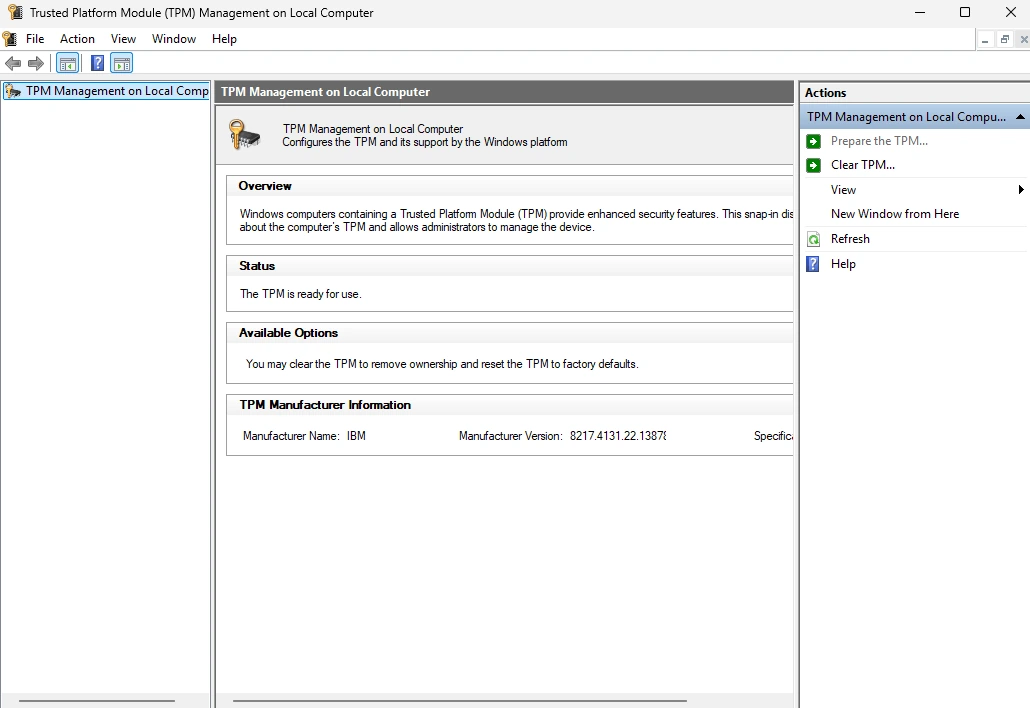
tpm.msc: TPM 2.0 ready; IBM vTPM. The QEMU / Standard PC strings are expected in a VM. Click to open full size.These are VM captures, so System Manufacturer: QEMU and Standard PC (Q35 + ICH9, 2009) are expected. The evidence is the Windows edition/build and the UEFI, Secure Boot and TPM state, not the hardware strings.
Scope: clean install only. In-place upgrade from 25H2/24H2, ARM64, and activation were not verified in this run. The VM used a SATA system disk because Setup could not see the VirtIO SCSI disk before drivers; that is a VM workaround, not a recommendation for physical hardware.
Troubleshooting
Section titled “Troubleshooting”| Symptom | Likely cause | First move |
|---|---|---|
| “This PC can’t run Windows 11” | TPM/Secure Boot/CPU not enabled or unsupported | Check firmware and tpm.msc; do not bypass on supported hardware |
| “No drives were found” | Storage driver missing (VMD/RST/RAID/VirtIO) | Load the OEM driver, or use a controller Setup supports |
| Setup keeps restarting | USB is still first in boot order | Remove the USB or boot the internal disk |
| Product key rejected | Key edition does not match the image | Skip the key, install the matching edition, activate later |
| No Wi-Fi after install | OEM Wi-Fi driver not in the image | Install the driver from another USB; Ethernet/USB tether as a bridge |
| Apps fail with DLL/0xc000007b | Runtime or bitness mismatch | See DLL and 0xc000007b |
What this page does not decide
Section titled “What this page does not decide”- Which edition or version you should run: see Which Windows 11?.
- Whether an in-place upgrade is safer than a clean install: back up first; upgrade keeps apps, clean install gives a known state.
- How to bypass requirements: this page deliberately does not provide that. Use supported hardware, or accept that an unsupported install is outside Microsoft’s support boundary.